1 Download the installer
The installer required to install or update SoftwareCentral is available from SoftwareCentral Update.
Select your SCCM version at SoftwareCentral Update and download the zip file.
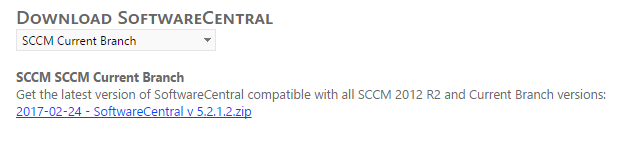
When the zip file is downloaded, follow Acquire the update to unblock it before you unzip it, and Installing SoftwareCentral Overview for the installation.
2 License login
Every installation needs a license login before it can be activated.
Your license login
Your SoftwareCentral supplier provides the license login. Have it ready before you start the installation. See SoftwareCentral License Information.
3 Best practice
- Download only from SoftwareCentral Update. The default address that SoftwareCentral uses for its update checks is
https://softwarecentralupdate.com/. - Choose the SCCM version that matches your site. Select your SCCM version in the list before you download.
- Have the license login ready. An installation cannot be activated without it.
- Unblock the zip file before you unzip it. See Acquire the update.
4 See also
| Installing SoftwareCentral Overview |
| SoftwareCentral License Information |
| Update SoftwareCentral: how often to update, and how to see the current version |